Please refer to the following when installing the Android app.
Supported OS and Precautions
・The supported version is Android 10 or later.
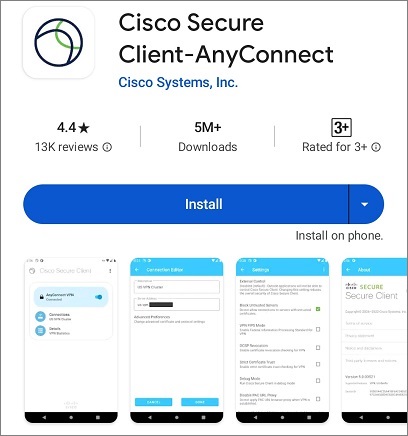
1. Download the App (Cisco Secure Client) from the link below.
2. When you open the downloaded app, the license agreement will be displayed. Tap OK.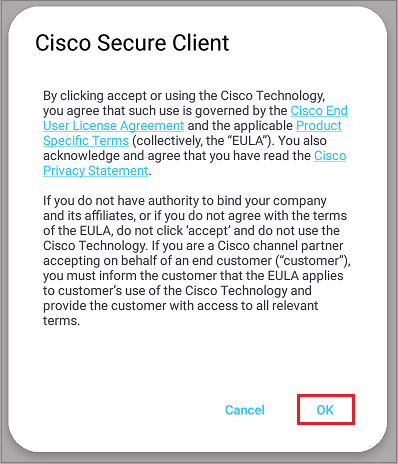
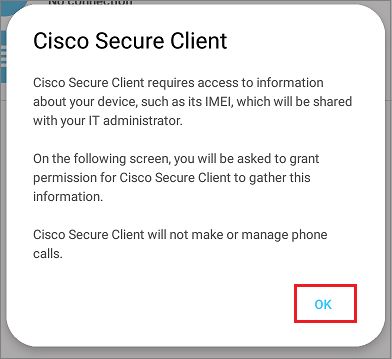
3. Next, a document requesting access permission to the device will be displayed. Tap OK.
4. The app's top screen will be displayed. First, tap "Connect".
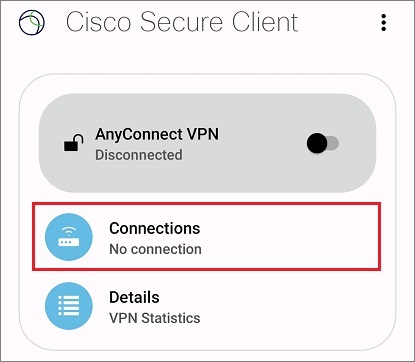
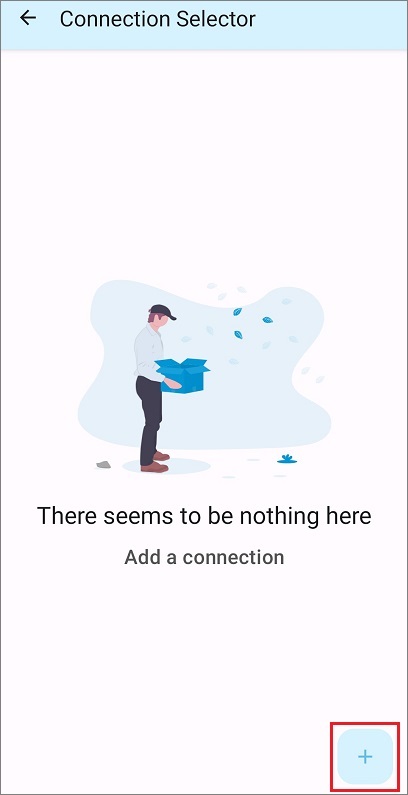
5. The connection selector screen will be displayed. Tap the "+" mark in the lower right corner.
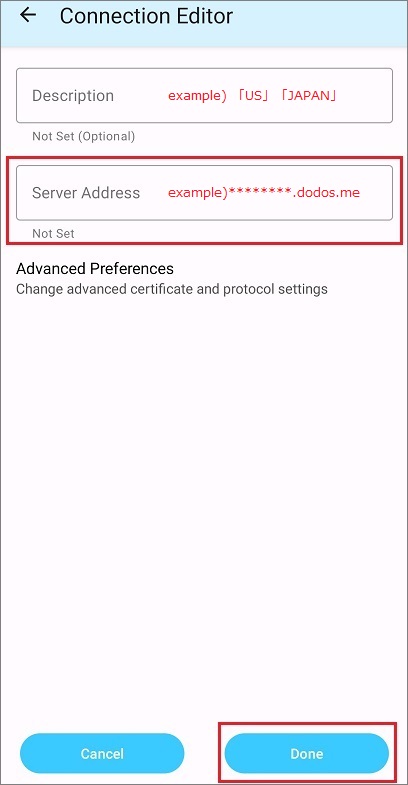
6. Enter the URL of the connection destination in the server address field and tap "Done".
*If you don't know the server address, you can check it here. I forgot my VPN connection information
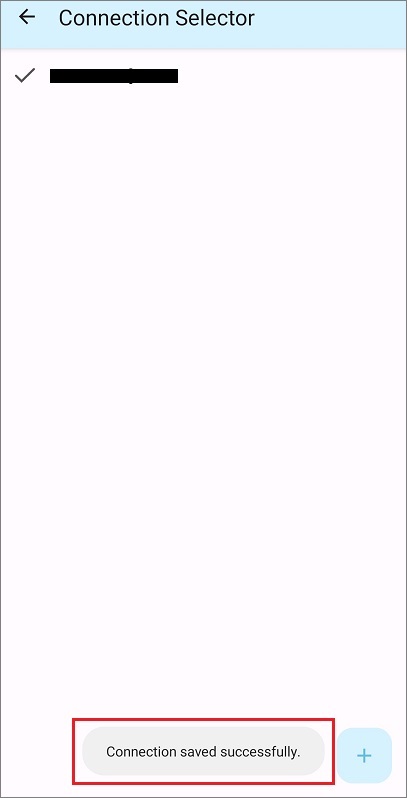
7. If the connection destination is correct, the URL and the message "Connection saved successfully." will be displayed.
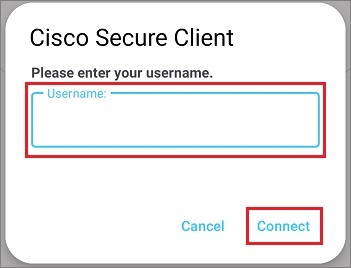
8. Return to the app's top screen, tap "AnyConnectVPN", enter your username and password when prompted, and tap "Connect".
*If you don't know your username and password, you can check it here. I forgot my VPN connection information
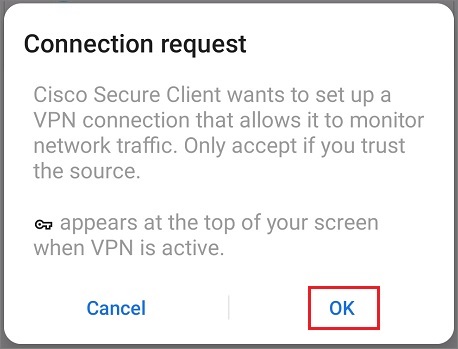
9. Only the first time you connect, a connection request permission will be displayed. Tap "OK".
10. When the connection is successful, it will display "Connected".
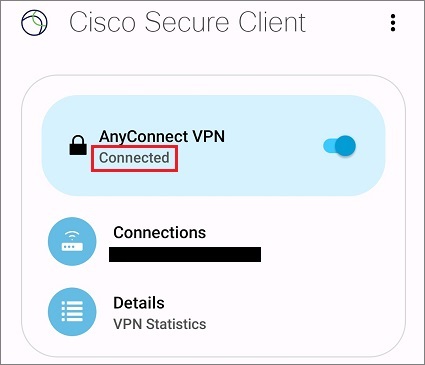
*Tapping the AnyConnectVPN slider will disconnect the connection.